By default, Windows moves audio between applications and your sound hardware in 10-millisecond buffers, and that is Microsoft's own number, not an estimate: "by default all applications in Windows 10 and later will use 10-ms buffers to render and capture audio". Everything else — effects, spatial processing, resampling, a wireless link — is added on top of that floor. If your footsteps arrive after the muzzle flash, one of the additions can be the reason, and the sections below take them one at a time.
The path a sound takes, with Microsoft's own figures
Microsoft's Low Latency Audio document breaks the render path into stages and puts numbers on the ones it controls. The short version:
| Stage | What it costs | Source |
|---|---|---|
| The game writes audio into a buffer | — | — |
| The audio engine reads and processes it, loading effects as audio processing objects (APOs) | 1.3 ms in Windows 10 and later, down from ~12 ms for float and ~6 ms for integer applications before it | Microsoft |
| Each effect in the chain adds its own | "The latency of the APOs varies based on the signal processing within the APOs" — no fixed figure | Microsoft |
| The engine writes to the buffer the driver reads | 10 ms by default; the minimum is declared by the audio driver | Microsoft |
| The driver moves it to the hardware, which may process it again | Device-specific, not published | — |
| Speaker or headphone | Physics | — |
Two facts from that document are worth carrying around:
- The 10 ms is not a law, it is a default. Since Windows 10 the driver declares the smallest buffer it can handle, and an application can ask for it. Microsoft's example: the inbox HDAudio driver "has been updated to support buffer sizes between 128 samples (2.66ms@48kHz) and 480 samples (10ms@48kHz)".
- Only the application can ask. "If an application needs to use small buffers, then it needs to use the new AudioGraph settings or the WASAPI
IAudioClient3interface, in order to do so." There is no Windows setting, and no registry value, that makes a game request a smaller buffer. No tuning software can do this for you, including ours.
There is one interesting consequence. Microsoft states that when one application requests a small buffer, "all applications that use the same endpoint and mode will automatically switch to that small buffer size", and the engine returns to 10 ms when that application exits. So a low-latency application already running on the same output can shrink the buffer your game is using, without your game knowing.
Cause 1 — a Bluetooth headset that opens its microphone
If you use a Bluetooth headset and also talk on it, this cause applies to you, and it is documented rather than folklore.
Windows plays stereo over A2DP and uses the Hands-Free Profile for the microphone — and it cannot do both. Microsoft's Bluetooth Classic Audio page says that on Windows 11, Windows switches from A2DP to HFP when "an application opens the input (microphone) endpoint" or "an application creates an output (playback) stream with the category set to Communications". HFP runs at 8 kHz (narrowband) or 16 kHz (wideband), in mono, and "Windows automatically resamples audio as needed for the currently selected profile" — so a game playing 48 kHz audio is resampled down to match a phone-call-grade link the moment your voice chat opens the microphone.
That is why a headset sounds fine in menus and terrible in a match: it is not the same audio path.
What to do:
- Use a wired headset for competitive play, or a dedicated 2.4 GHz wireless headset with its own USB receiver. Those keep one path and do not switch profiles.
- If you must stay on Bluetooth, use a separate microphone so nothing opens the headset's input endpoint, and the device stays on A2DP.
- Check which codec you actually got. Windows picks the first codec supported by both ends, in the order aptX Adaptive, AAC, aptX Classic, SBC — the availability table by Windows version is on the same Microsoft page.
- If the device pairs badly or the endpoints disappear entirely, that is a different fault: Bluetooth is the repair card for it.
A Bluetooth link adds encode, transmit and decode time in both directions, and no vendor publishes a single figure that applies across chipsets and adapters — so we are not going to print one. What the vendor documentation does establish is the mechanism and the profile switch above. That is enough to make the decision.
Cause 2 — a sample rate that has to be converted
If the game outputs 48 kHz and your device is configured for 44.1 kHz — or the other way around — the engine resamples, which is work and which is not free. Windows exposes a flag applications can set when "it is important to avoid resampling in the audio engine", which tells you the conversion is real enough for Microsoft to give developers a way around it.
What to do:
- Right-click the speaker icon, open Sound settings, then the properties for your output device.
- Find the default format (usually under Advanced) and set it to 24 bit, 48000 Hz unless your hardware documentation says otherwise. Games and Windows both work in 48 kHz.
- Set your headset's own configuration software to the same rate if it has one.
- Play something and confirm it still works. If a specific application breaks, put the setting back — this is reversible and it is not worth losing an application over.
Cause 3 — the effects stack you did not know was on
Every effect in the path is an audio processing object, and Microsoft's own wording is that their latency varies with the processing inside them. Spatial sound, virtual surround, "enhancements", loudness equalisation, a headset vendor's EQ and an unmuted second output all add stages.
Spatial processing is the interesting one for gamers because it is a real trade, not a mistake: it exists to make direction easier to judge, and it is another stage in the chain. Judge it by ear rather than by principle.
What to do:
- Open your output device's properties and look for an enhancements or effects tab. Turn everything off, and listen.
- Turn spatial sound off temporarily and play a round with plain stereo. If direction got worse and timing got better, you now know your own trade-off.
- Turn off your headset software's EQ and virtualisation the same way. One at a time.
- Turn back on only what you missed.
There is no correct answer here, and anyone who tells you there is has not run the test on your ears with your headset.
Cause 4 — exclusive mode: what it buys and what it costs
An application can open a device in exclusive mode, and Microsoft describes exactly what that means: "the data bypasses the audio engine and goes directly from the application to the buffer where the driver reads it from. However, if an application opens an endpoint in exclusive mode, then there's no other application that can use that endpoint to render or capture audio."
Microsoft's own exclusive-mode page is blunter: "Exclusive-mode streams seize the audio endpoint—all system sounds, notifications, and audio from other applications are silenced."
That page also carries an important modern caveat. Since Windows 10, IAudioClient3 lets a shared-mode stream use very small periods, which "provides latency comparable to exclusive mode while preserving system sound mixing and interoperability" — so exclusive mode is not the automatic win it was in 2010.
The checkbox in Windows — Allow applications to take exclusive control of this device — does not put anything into exclusive mode. It only decides whether an application that asks is allowed to. Leaving it enabled costs nothing; disabling it stops applications that want it from getting it.
For a game where you also need voice chat, a browser and system sounds, exclusive mode is usually the wrong trade. Say that out loud before you go looking for it.
What w0a does here, and what it does not
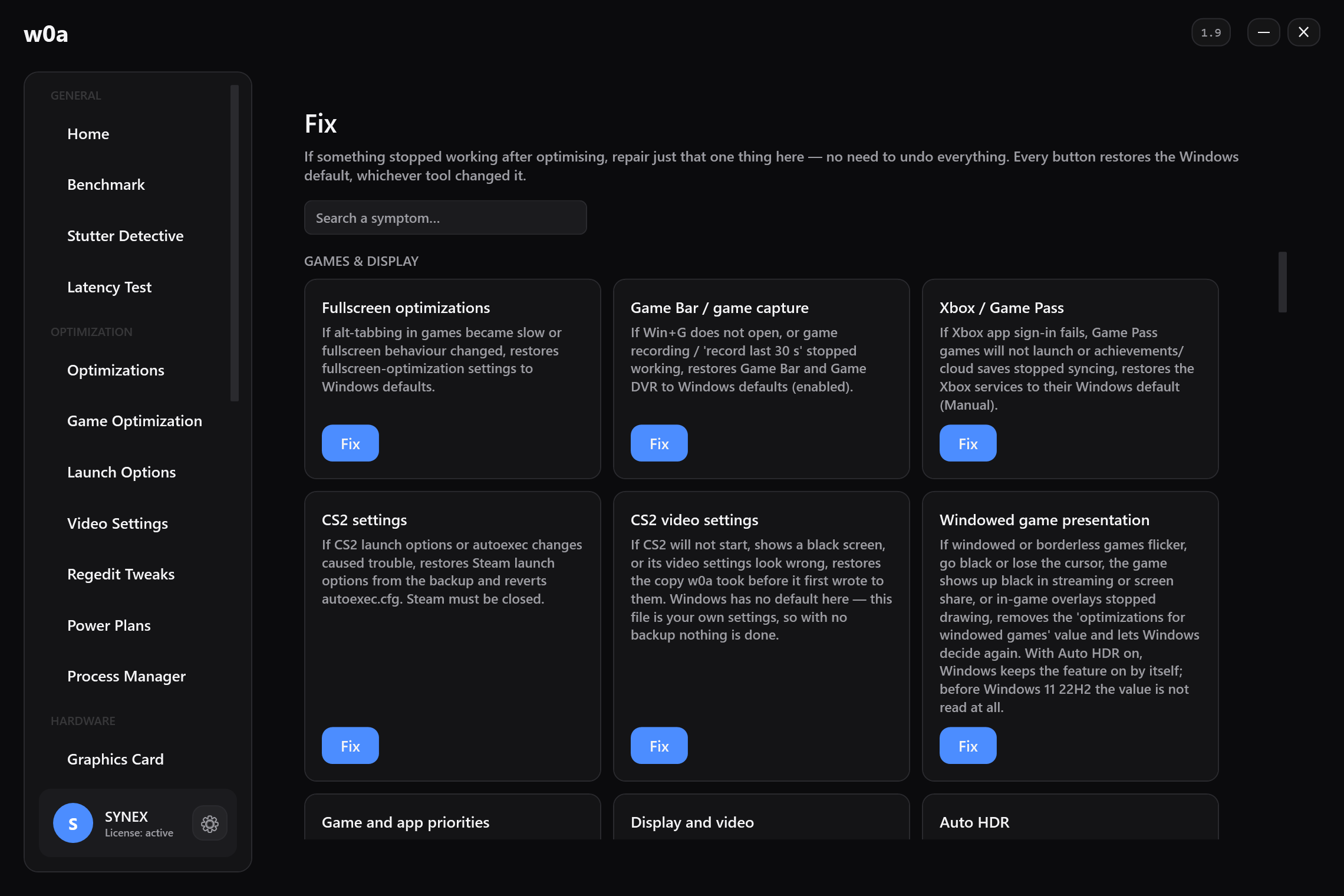
What it does. The Regedit Tweaks page has exactly one entry in its AUDIO group, called Audio thread priority (MMCSS). It sets the Scheduling Category of the multimedia scheduler's Audio task to High, under HKLM\SOFTWARE\Microsoft\Windows NT\CurrentVersion\Multimedia\SystemProfile\Tasks\Audio. Audio tweaks is the per-entry page for it.
Be precise about the mechanism. Raising a scheduling priority does not shrink the buffer — it makes the audio thread more likely to be running when its deadline arrives. On a loaded machine that removes late buffers and the glitches that come with them, which you hear. On an idle machine there is nothing there to win.
What it does not do. It does not change your buffer size — only the application can ask for that. It does not change your sample rate. It does not install an audio driver. It does not touch spatial sound. And it does not write SystemResponsiveness, which appears in every audio-tuning list on the internet: below 10 the value behaves as the default anyway, and on a machine already set to 10 we measured writing 0 making things worse. The Fix page can still repair it to the Windows default if an older tool changed it.
There is a related switch on the Optimizations page — Keep the game scheduler profile in the High category (MMCSS Games) — and it deserves the same honesty. It only affects titles and audio stacks that actually register a multimedia scheduler task. Games that never register one are unaffected by it, and the product makes no frame-rate claim for that switch for exactly this reason.
If the audio stack itself is broken — sound cutting out, a device that vanished, an old tool having left the scheduling value somewhere strange — the Audio repair card restarts the audio services and writes the Windows default back. That is a repair, not a tweak, and it does not depend on w0a having made the change.
What software cannot do here
- It cannot make a game request a smaller buffer. That is an application decision, in the application's code.
- It cannot remove the encode and decode time on a wireless link.
- It cannot stop Windows switching a Bluetooth headset to the hands-free profile when something opens its microphone — that behaviour is by design and is documented.
- It cannot remove the driver's declared minimum buffer size. That is what your hardware can do.
Which leaves a short honest list of what is actually yours: the transport (wired against wireless), the sample rate, the effects stack, and whether the audio thread gets scheduled on time. Work through those four and you will have taken out everything that can be taken out.
Related
- Audio tweaks
- Audio
- Bluetooth
- How to reduce input lag: what software can and cannot shorten
- Why my aim feels delayed
Of the dozen or so stages between a click and a changed pixel, software owns three; the firmware, the display and the game own the rest: How to reduce input lag: what software can and cannot shorten
Did this page help?
What was missing, or what did not work? We read every one of these.
If this page did not solve it, write to us — say which article you read, and we will fix the article.